

Learn How to use Rocketdock to beautify PC desktop. It’s popular program for docking and application launcher. Learn rocketdock use step by step.
OVERVIEW ROCKETDOCK
Rocket Dock is a launcher that displays your shortcuts for your convenience. It beautifies your desktop screen. It could replace taskbar. Almost every installed application and in-built you can add. This tutorial will help you to customize Rocketdock according to your need.
Minimum System Requirement for RocketDock
- Windows 2000/XP/Vista
- 500Mhz or faster CPU
- 10MB RAM free
How to Use Rocketdock
ADD DOCKLETS – ICONS – SKINS
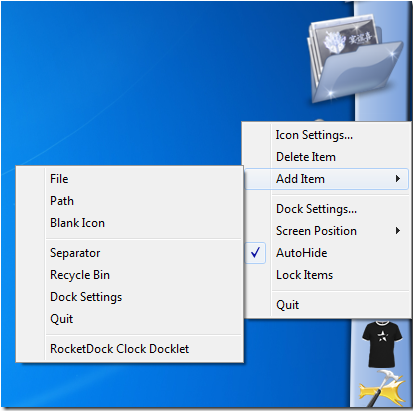
A Right Click on the Rocketdock go to the ‘Add items’. Now select type of the items you want to add in dock. Add documents or shortcuts by browsing and click open. You can also add separators for different categories.
DRAG N’ DROP
Drag and drop the file into the dock if it supports that file it will launch the application. For Example if you drag the PNG. File in the Photoshop shortcut if it supports the format it will launch the PNG. File.WORKING ON THE SETTING:
Click on the dock and go to the DOCK SETTINGS. You will see the five categories.
1. GENERAL ROCKETDOCK SETTING
In general setting, you are able to change language and startup integration. This is mostly used for minimizing your running programs in the dock instead of the taskbar. If you checked the check-box ‘minimize windows to dock’.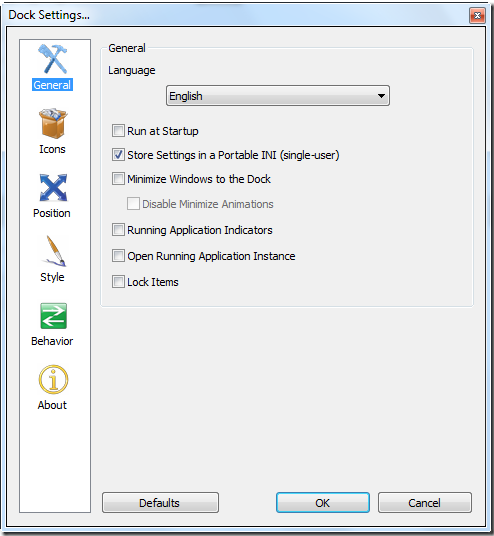
2. ICON
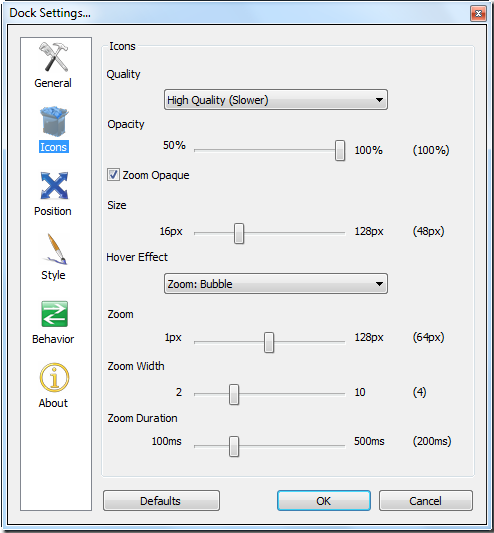
You could change the look of all rocketdock icons in your dock by selecting the desired options i.e. opacity, quality, Hover Effect, Zoom, Zoom Width, Zoom Duration.
3. POSITION
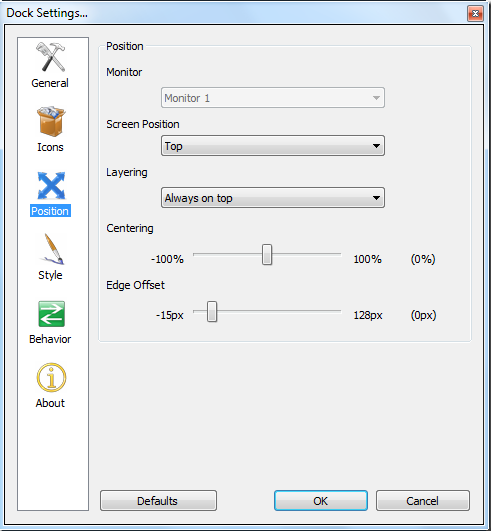
You can adjust the position of the dock on your desktop screen either left, right, top and bottom. Make sure that your dock is not overlapping the taskbar.
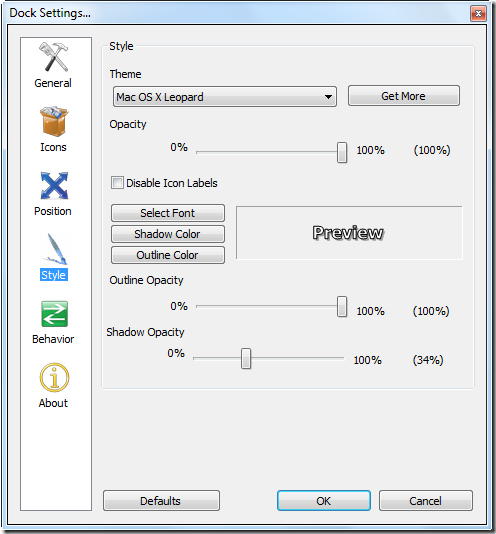
4. STYLE
Presentation really matters. You can change text size, font and the dock theme to your desire to give a new look.
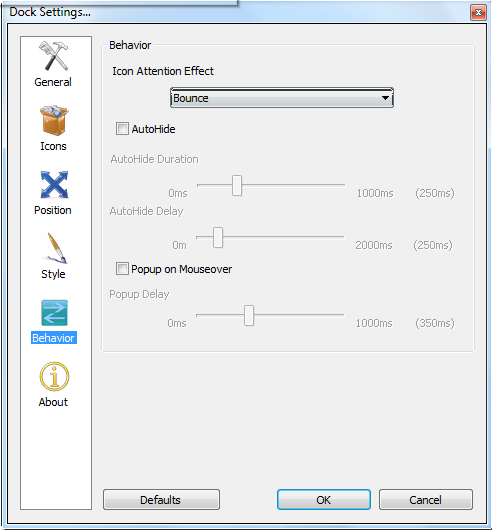
5. BEHAVIOR OF DOCKLETS
Adjust the behavioural control of the icon according to your desire.
RESET ROCKETDOCK SETTINGS
Click on the Default button and the setting will be restored.
0 comments:
Post a Comment